Layered Character Group Entry Renderer Component
The Layered Character Group Entry Renderer loads a Layered Character from a Layered Character Group and renders it in-game.
This component is responsible for:
- Loading a layered character from a group
- Applying the Character Shader
- Assigning the Animator Controller (Optional)
- Managing Overlay Layers
Requirements:
- A Layered Character Type
- At least one Layered Character saved in a group
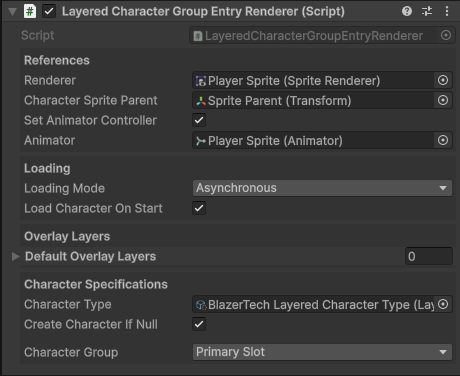
Quick Setup Overview
Quick overview of how to setup the Layered Character Group Entry Renderer component.
- Add the component to a GameObject.
- Assign Renderer (Usually a Sprite Renderer).
- optionally assign Animator.
- Configure Loading Settings.
- Assign the Character Type you want to load a character from.
- Select the Character Group (Primary, Flexible or Fixed) and configure parameters.
Setup
Full step-by-step guide to setup the Layered Character Group Entry Renderer component.
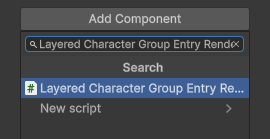
Add Component
Add the component to a GameObject by clicking Add Component in the inspector window.
Assign Renderer Component
Assign the component responsible for rendering the character's sprites.
In most cases, this will be a Sprite Renderer. The Character Shader will be applied to this renderer.

Assign Animator Component (Optional)
If your Character Type asset includes an Animator Controller, it can be applied automatically when the character is loaded.
To enable this:
- Enable
Set Animator Controller. - Assign the target Animator component.

Configure Loading Settings
The Loading Mode determines how the character is loaded at runtime. This can significantly impact performance.

| Loading Mode | Description | Advantages | Cons |
|---|---|---|---|
| Asynchronous | Loads the character in the background. | No frame stutters or freezes. | Character is temporarily invisible while loading. |
| Synchronous | Loads the character on the main thread. | Character is immedietely renderered the same frame. | May cause frame stutters depending on spritesheet size. |
Recommended Usage
- Use Asynchronous loading for background NPCs or characters that aren't time sensitive.
- Use Synchronous loading when the character must appear Immediately, such as a player character.
Load Character On Start
If Load Character on Start is enabled, the character is automatically created and rendered during the Start() method
If disabled, the character must be loaded manually through script using the GetAndShowCharacter() method
Assign Character Type
Assign a Layered Character Type asset.
This will be used when looking for a character group.

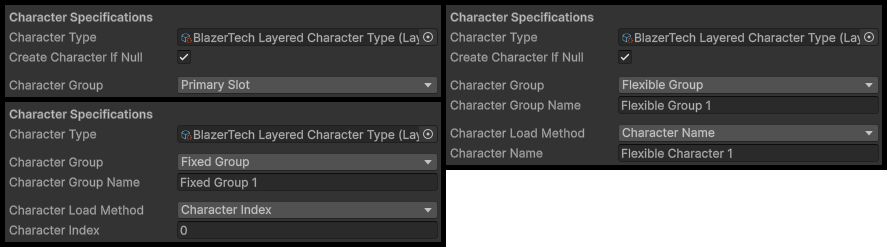
Set Character Group Type
Choose the type of group you want to load from.
| Group Type | Description |
|---|---|
| Primary Character Slot | A single character attached to the Character Type asset. No additional parameters required. |
| Flexible Group | A group of characters that can be added, removed, or edited at any time. |
| Fixed Group | A group with a preset number of characters. New characters cannot be added or removed after creation. |
If Flexible Group or Fixed Group is selected, the following parameters are required:
| Parameter | Type | Description |
|---|---|---|
| Character Group Name | String |
A unique name used to find the Fixed or Flexible group. |
| Character Load Method | Enum |
Determines how a character is selected from the group: - Character Name > Load a character by its saved name. - Character Index > Load a character by its index position in the group. - Randomized > Randomly load a character from the group. |
Create Character If Null
If enabled and a group was successfully found but no character was found in the group matching your criteria, a new blank character will be created and added to the group.

Note
Only affects the Primary Slot and Flexible Character Groups. Fixed Character Groups can't have characters added to them after creation.
Hit Play

Enter Play Mode and if:
Load Character On Startis enabled in Loading Settings- The renderer is able to find the character group
Then the character will be automatically loaded and displayed.