Layer Selector Setup
A Layer Selector is a UI element that lets the player modify a specific layer of a Layered Character.
Each selector is responsible for controlling one layer of the character. (e.g. Body, Outfit, Hairstyle, etc.)
Layer Selector Types
The following selector types are included:
| Selector Type | Description |
|---|---|
| Dropdown Selector | a Simple dropdown listing all options for a layer. |
| Carousel Selector | Displays the current option with button to cycle left/rght. |
| Grid Selector | A grid of preview thumbnails for each layer option. |
| List Selector | A vertical or horizontal list of options, optionally with preview images. |
| Tab Selector | Works alongside another selector. Clicking a tab switches which layer another selector is controlling. |
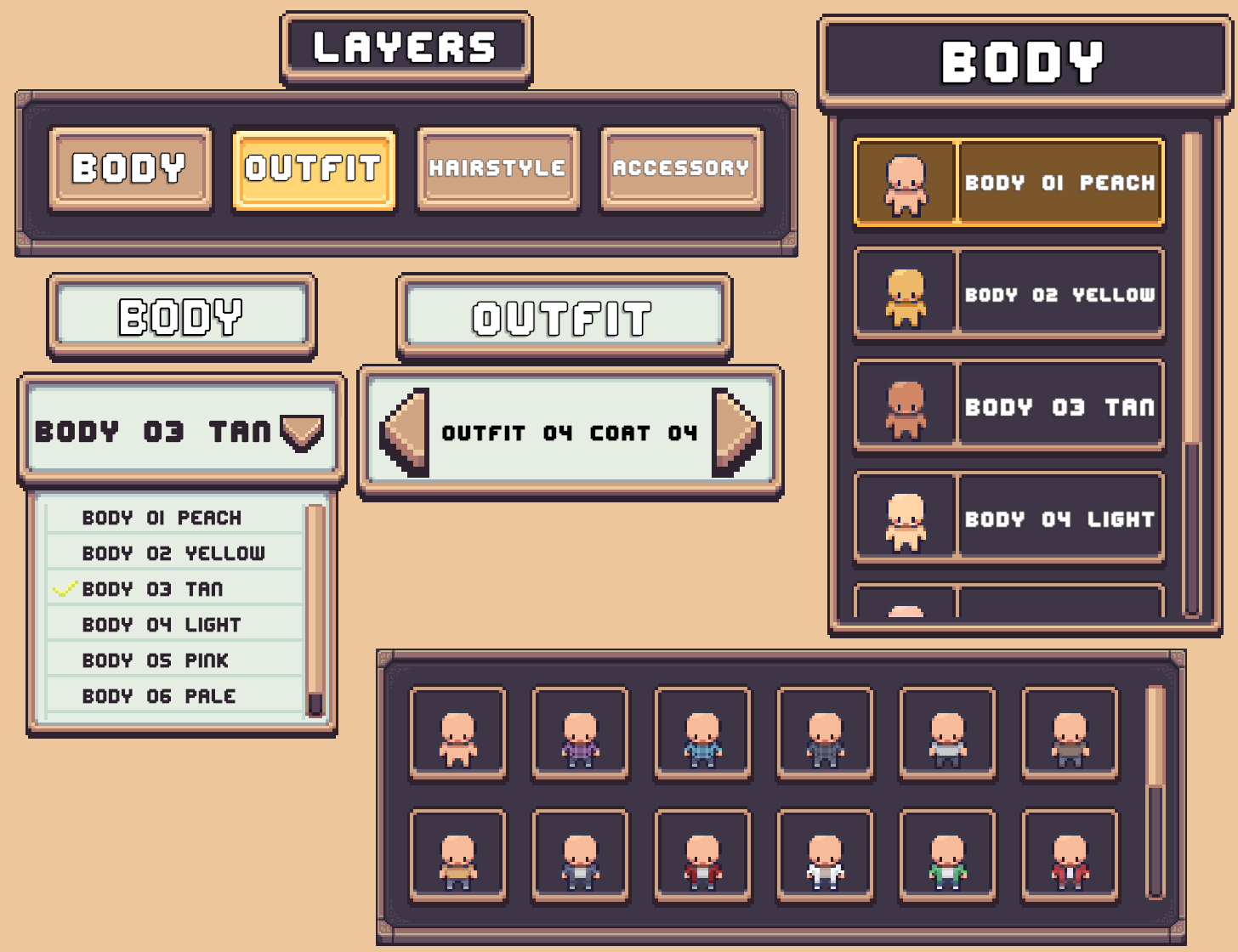
How Layer Selectors Work
A Layer Selector cannot function on its own.
All selectors must be initialized and managed by the CCM Character Layer Selection Manager.
This component:
- Initializes Layer Selectors.
- Assigns each selector to a specific layer.
- Handles Layer Selector overflows.
Bulk Selector Setup
The most common setup is to use multiple Layer Selectors, one for each layer with all Layer Selectors shown on screen at once.
There are two ways to setup Layer Selectors:
- Pre-Setup Prefabs - Use prefabs which are already full setup and functional.
- Manual Setup - Setup Layer Selectors from scratch.
Prefabs
Location: Prefabs > Character Creator > Modules > Layer Selectors.
Each Layer Selector type has its own folder containing two subfolders:
Core Folder
Contains individual Layer Selector prefabs.
- Usually includes multiple variations.
- Not functional on their own.
- Intended for manual setup.
Pre-Setup Folder
Contains collections of the Layer Selector fully configured with the Character Layer Selection Manager component.
They can be dropped straight into any Character Creation Menu and are functional without any other setup.
Two variations of the Pre-Setup prefab are provided:
[Initialize Existing]
Prefabs that contain [Initialize Existing] at the end of the name include a set of Layer Selectors within the prefab.
Vertical, Horizontal or Grid Layout Groups are included and configured. These are used to space out Layer Selectors automatically.
These prefabs are useful when you want to control exact placement of each Layer Selector. The downside is if not enough Layer Selectors are included, not all layers of the character will be editable and a warning will be logged.
Note
If too many Layer Selectors are included, by default unsued Layer Selectors will be disabled and hidden. This action can be changed in the Character Layer Selection Manager component.
[Auto Create]
Prefabs that contain [Auto Create] at the end of the name do NOT include Layer Selectors beforehand, instead they are automatically instantiated at runtime and are placed inside a child GameObject with a Grid Layout Group setup to organize them.
These can be useful for situations where the amount of layers a character will have can change. For example if the Character Creation Menu will be used with multiple different Character Types with different amounts of layers.
When the Character Creation Menu is opened, the appropriate amount of Layer Selectors will be instantiated automatically.
Layer Selector Customization
All Layer Selectors can be customized:
- Sprites can be changed
- Fonts and text size can be changed
- Colors can be modified
Go wild! Make those Layer Selectors unique to your game.
Manual Setup
Steps to setup your own collection of Layer Selectors with the Character Layer Selection Manager.
Create Manager
- Create a new GameObject named "Layer Selectors".
- Add the
CCM Character Layer Selection Managercomponent.
Choose Initialization Mode
There are two Initialization Modes:
Auto Create
At runtime, the manager will instantiate a new Layer Selector for each character layer.
Required Fields:
Layer Selector Prefab
- The prefab used when instantiating Layer Selectors.
- Found under:
Prefabs > Character Creator > Modules > Layer Selectors > [Type] > Core. - Unsure which Layer Selector to choose? Check out the list here.
Layer Selector Parent
- The parent GameObject where selectors will be instantiated.
- Typically uses a Layout Group component for automatic spacing.
Initialize Existing
All Layer Selectors must already exist in the hierarchy.
Setup Steps:
- Navigate to:
Prefabs > Character Creator > Modules > Layer Selectors. - Open the folder for the Layer Selector you want to use.
- Open the Core folder.
- Drag selector prefabs into your scene.
- Make them children of the Layer Selectors Parent GameObject.
Unsure which Layer Selector to choose? Check out the list here.
Layer Selector Parent
- Reference to the parent GameObject containg all Layer Selectors.
- Required for initialization.
- Can be the same GameObject as the manager.
Unused Selector Action
Determines what happens when there are more selectors than layers:
| Option | Behavior |
|---|---|
| Nothing | Leaves the selector unchanged. |
| Disable | Disables interactivity but keeps it visible. |
| Disable and Change Alpha | Disables interactivity and fades using a Canvas Group. |
| Hide (Default) | Completely hides the selector. |
Test
- Enter Play Mode.
- Open the Character Creation Menu.
If setup correctly:
- Layer Selectors will initialize automatically.
- Each selector will control a different layer.
- Changing a selector updates the character in real-time.